Solutions · EV charging

Your car, in the plan.
Charged on cheap power.

An EV is the biggest flexible load in most homes. SolanIQ now brings it into the optimiser — connect an OCPP smart charger, or declare sessions on any charger — so your car and your battery stop competing for the same electrons.

Two ways to connect

Smart charger or not, it just works.

Pick the mode that matches your hardware. You can switch later from the EV Charger card in your dashboard.

Smart charger

OCPP integration

If your charger speaks OCPP — the open protocol most smart wallboxes support — SolanIQ connects to it directly. It sees every session live and schedules charging into cheap price windows and surplus solar, alongside your battery plan.

  • Live charger status and power
  • Charging scheduled by the optimiser
  • Solar-only mode for zero-grid charging
Any charger

Manual charger

No OCPP? Tell SolanIQ your charger’s current and phases, then declare a session when you plug in. The optimiser knows the extra load is your car, and your session history builds up automatically.

  • Works with any charger or granny cable
  • One tap to declare a session
  • Estimated energy per session

Why it matters

One brain for the battery and the car.

Without coordination, plugging in your EV looks like your house suddenly needing 11 kW — and a battery optimiser will happily empty itself trying to cover it. SolanIQ treats the car as its own load and plans everything together.

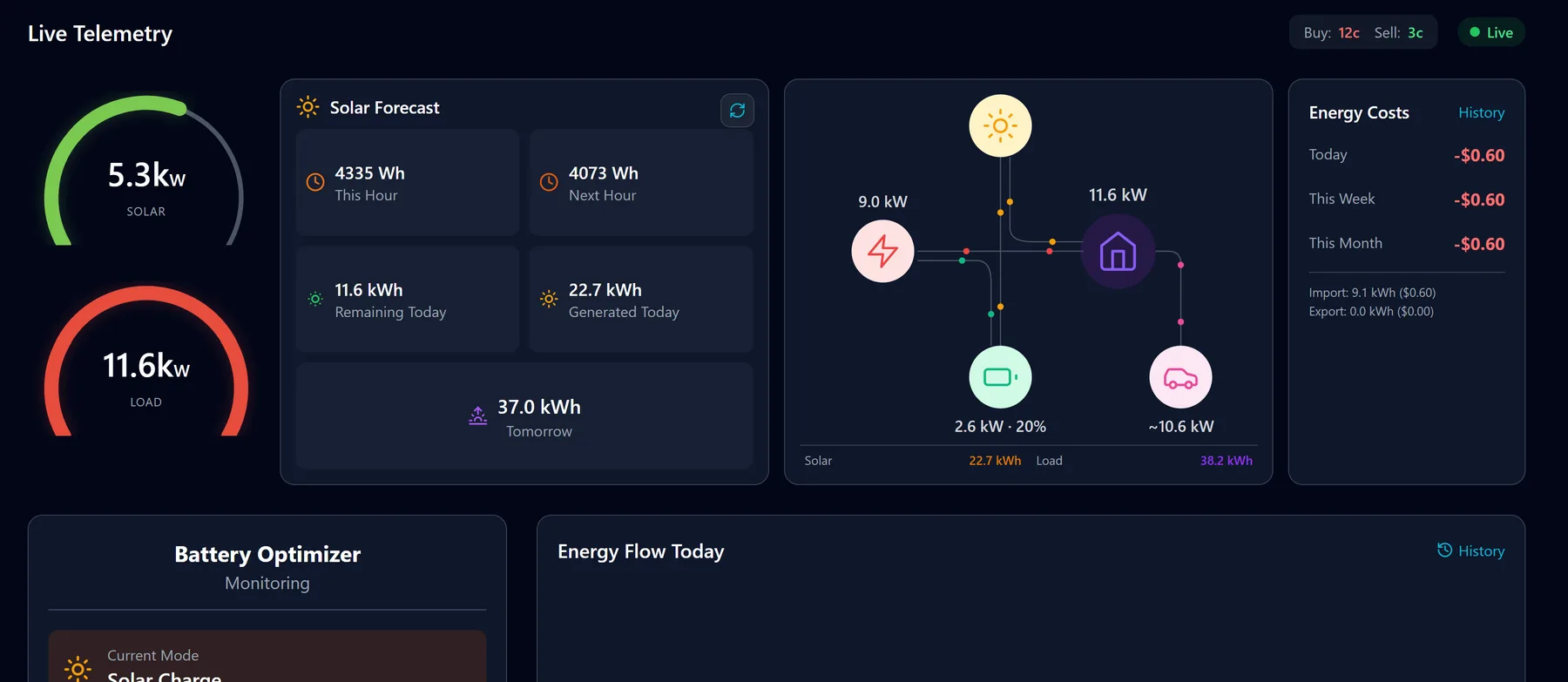
SolanIQ live telemetry: 5.3 kW solar, 11.6 kW load, and a power flow diagram with grid, home, battery charging at 2.6 kW and an EV charging at about 10.6 kW
The EV gets its own node in the live power flow — here charging at ~10.6 kW while the home battery keeps charging.

Your battery stays in the plan

An 11 kW car charger can outdraw a home battery several times over. Because SolanIQ knows that load is the car, it plans the battery around the session instead of draining it into your EV.

A cleaner load forecast

EV sessions are kept separate from your household usage, so a big charging night doesn’t skew tomorrow’s forecast of how much power your home needs.

Charge when power is cheap

With an OCPP charger, SolanIQ moves charging into the cheapest windows — overnight lows, negative-price middays on Amber, or GloBird’s free-power hours.

Soak up surplus solar

Solar-only mode charges the car from excess generation that would otherwise be exported for a few cents — or curtailed when feed-in prices go negative.

See it on the dashboard

Your EV appears in the live power flow next to solar, battery, home and grid, and every session is logged with its date, energy and duration.

You stay in charge

Running late or leaving early? Extend a declared session by an hour, change its end time or mark it finished — the optimiser re-plans straight away.

Setup · OCPP charger

Connect a smart charger.

  1. Check your charger for OCPP

    Look in your charger’s app or installer settings for OCPP, “backend”, “central system” or a CSMS URL. On some models these settings are in the installer app, so your electrician may need to help.

  2. Add the charger in SolanIQ

    Sign in at app.solaniq.ai, open your site and find theEV Charger card. Tap the pencil icon, choose an OCPP charger and SolanIQ shows the connection details for your charger.

  3. Point your charger at SolanIQ

    Enter those details into your charger’s OCPP settings and save. Within a minute or so the EV Charger card shows the charger as connected, with its live status and power.

  4. Plug in and let it run

    SolanIQ schedules charging alongside your battery plan, around cheap prices and surplus solar. Prefer the car to run on sunshine only? Switch on solar-only mode.

Setup · Manual charger

No OCPP? Declare your sessions.

Manual mode works with any charger — a basic wallbox, a portable charger or a standard power point. You tell SolanIQ when the car is charging; it does the rest.

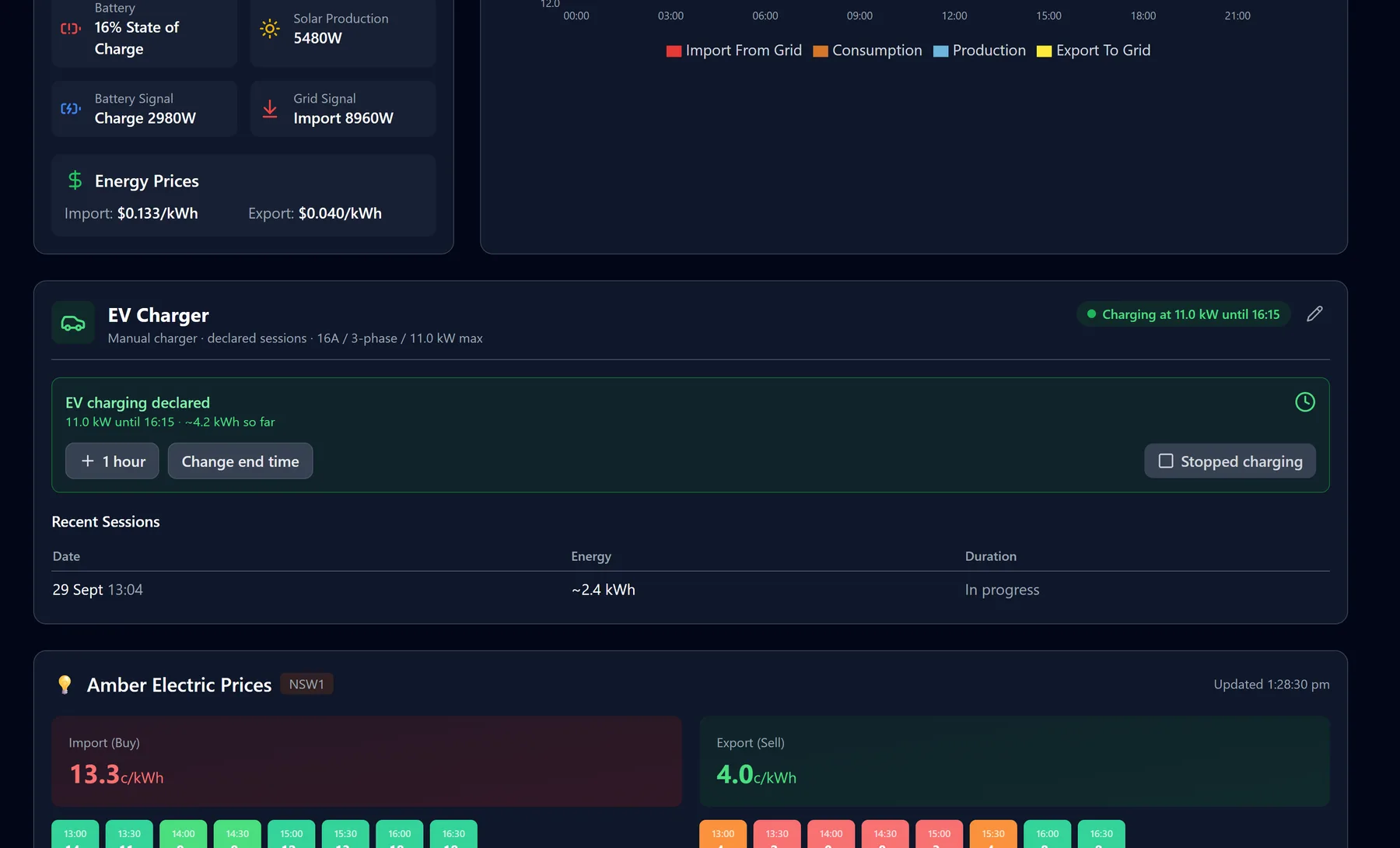
SolanIQ EV Charger card for a manual 16 A, 3-phase, 11 kW charger, showing a declared session at 11.0 kW until 16:15 with about 4.2 kWh so far, buttons for plus one hour, change end time and stopped charging, and a recent sessions table
A declared session on the EV Charger card, with recent sessions underneath.
01

Describe your charger

On the EV Charger card, tap the pencil icon, choose a manual charger and enter its current and phases — for example 16 A / 3-phase. SolanIQ works out the maximum power (11.0 kW in that case).

02

Declare a session

When you plug in, declare the session and set roughly when it will finish. The card showsEV charging declared with the power, end time and an estimate of the energy delivered so far.

03

Adjust or finish

Use + 1 hour or Change end time if plans change, andStopped charging when you unplug. Each session lands inRecent Sessions with its date, energy and duration.

EV charging FAQ

Common questions.

How do I know if my charger supports OCPP?

Check its app or installer settings for “OCPP”, “backend”, “central system” or “CSMS URL”, or search your charger’s manual. Many popular home wallboxes support it, sometimes after a firmware update. If yours doesn’t, use manual mode.

Will connecting to SolanIQ break my charger’s own app?

Most chargers connect to one OCPP backend at a time, so pointing yours at SolanIQ can replace the manufacturer’s cloud for scheduling. Check your charger’s documentation, and email us if you’re unsure about your model.

How accurate are manual session energy figures?

They’re estimates. SolanIQ works them out from your charger’s rated power and how long the session ran, which is why they’re shown with a “~”. Cars slow down as they near full, so real usage can be a little lower.

Does EV charging cost extra?

No. EV charging is included in your SolanIQ subscription.

New to SolanIQ? Start with the user guide to connect your battery and electricity plan, then add your EV charger from the dashboard.

Put your EV on cheap power.
Make it intelligent.

Try SolanIQ free for 30 days. $10/month after that, cancel anytime.